
Easy Ways to Fix Common Printing Problems
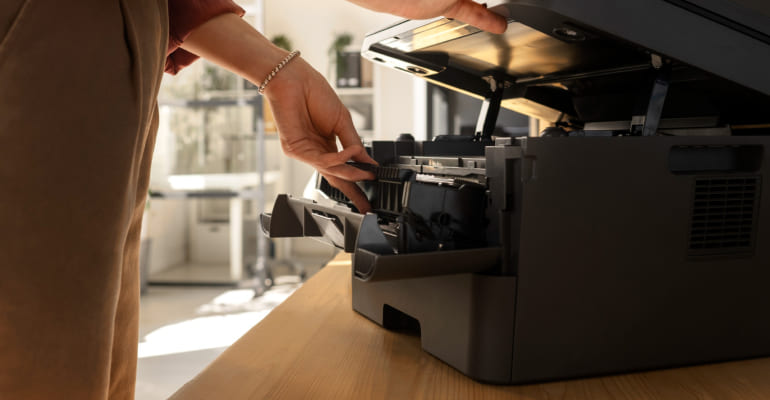
Easy Ways to Fix Common Printing Problems
Printers may look like simple office tools, but even small problems can be very frustrating. The good news is that most printer issues can be fixed with a bit of basic maintenance. This guide covers the most common printing problems and offers easy, do-it-yourself solutions to keep your printer working smoothly.
1. Paper Jams
Sign: Constant or frequent paper jams, even after removing stuck paper.
- Fan the paper before loading to remove static and dust.
- Align paper properly with tray guides and avoid overfilling the tray.
- Clean the feed rollers gently using a lint-free cloth.
2. Poor Print Quality
Sign: Text or images appear faded, blurry, or unclear.
- Run the built-in printhead or nozzle cleaning cycle.
- Clean the scanner glass or printhead area if using a multi-function printer.
- Use recommended paper and original ink or toner cartridges.
3. Printer Not Working or Showing Offline
Sign: Printer does not respond or shows offline status.
- Unplug the printer, wait about 10 seconds, then plug it back in.
- Check wired and wireless connections; try USB to test connectivity.
- Ensure the printer is set as the default device and drivers are updated.
4. Slow Printing Speed
Sign: Printing takes much longer than usual.
- Switch print settings to “Draft” or “Normal” mode.
- Test wired printing to rule out wireless network delays.
- Clear stuck print jobs and restart the printer or computer.
5. Connectivity Issues (USB, Network, Mobile)
Sign: Unable to print from phone or printer not detected.
- Update printer firmware and drivers from the manufacturer’s website.
- Ensure mobile devices and printer are on the same network.
- Replace USB or Ethernet cables to rule out hardware issues.
6. Error Codes and Warning Lights
Sign: Error messages or warning lights appear on the printer.
- Restart the printer after unplugging it.
- Check error codes in the printer manual or online support pages.
- For persistent errors like fuser faults, seek professional assistance.
When to Get Professional Help
- Problems continue even after trying DIY solutions.
- Unusual noises, excessive heat, or burning smells.
- Hardware-related error codes such as fuser issues.
- Cartridge or drum alignment and replacement problems.
Conclusion
You don’t need to be a technical expert to fix most printer problems. By checking power and connections, cleaning internal parts, running maintenance tools, and keeping software updated, many issues can be solved quickly. If problems persist, professional help is the safest option. With these tips, printing troubles can become a thing of the past.
