
Printer Solutions
Most printer issues and how to fix them yourself
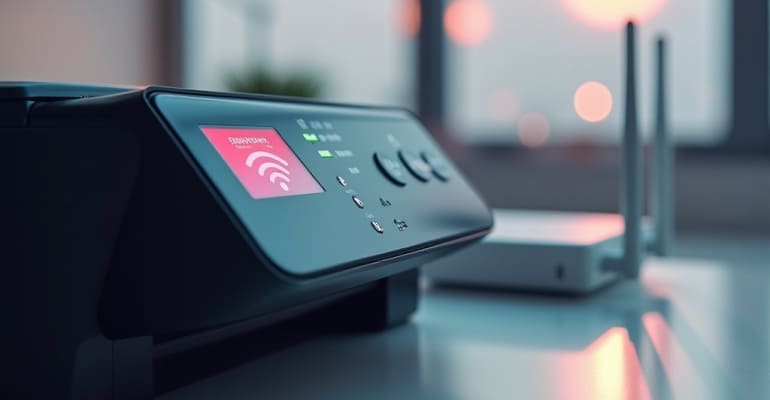
1. Problem with Connectivity
Problem: You can't get your printer to connect to Wi-Fi, your computer, or your phone.
Types of Causes:
- Entering the wrong Wi-Fi network or password
- The printer is too far away from the computer. The firmware settings need to be updated
- The printer has been turned off
- Problems when new products or updates are used
Fix It Yourself:
- Print and wifi should be turned back on.
- Use the settings panel to directly connect the printer to your Wi-Fi again.
- Make sure that the right network is chosen and that the passwords are correct.
- To add the printer again, go to your computer's system settings and remove it.
- If your printer type has firmware updates, check for them and install them if they are available.
- On your PC or Mac, make sure the printer is not set to "Use Printer Offline."
For the Future:
- Regularly update the software on your printer.
- Do not put the printer too far away from the router.
- To avoid misunderstanding, give your Wi-Fi SSID a new name.
- If your printer often shuts down, set a static IP address for it.
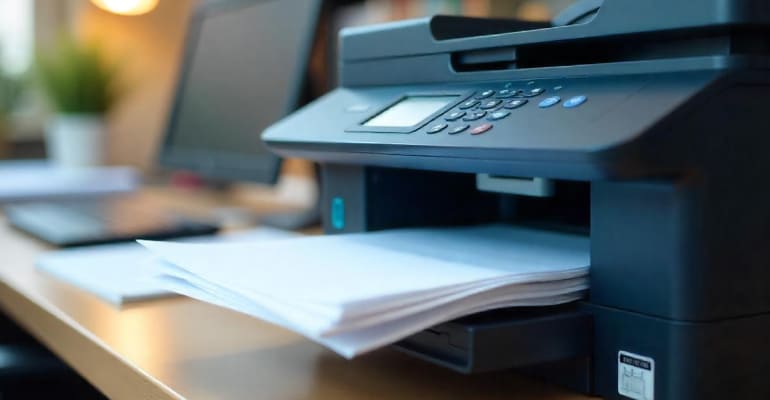
2. Mistakes in Printing
You're getting error messages like “Printer not responding” or “Unable to print,” and print jobs fail to complete properly.
Types of Causes:
- The print queue is full or stuck
- Broken printer driver or outdated software
- Connection problems between the device and printer
- Software conflicts due to recent OS updates
- Incorrect paper size or print settings selected
Fix It Yourself:
- Cancel all pending print jobs in the queue.
- Restart both your computer and printer.
- Reinstall the printer driver or download the latest version from the manufacturer’s website.
- Check all USB, Wi-Fi, or Bluetooth connections.
- Confirm the correct paper size, type, and tray before printing.
- Run a printer troubleshooting or diagnostic test if supported.
For the Future:
- Clear the print queue regularly and restart the spooler service.
- Keep printer drivers updated according to your OS.
- Always use the recommended paper size and type.
- Double-check print settings before starting large jobs.
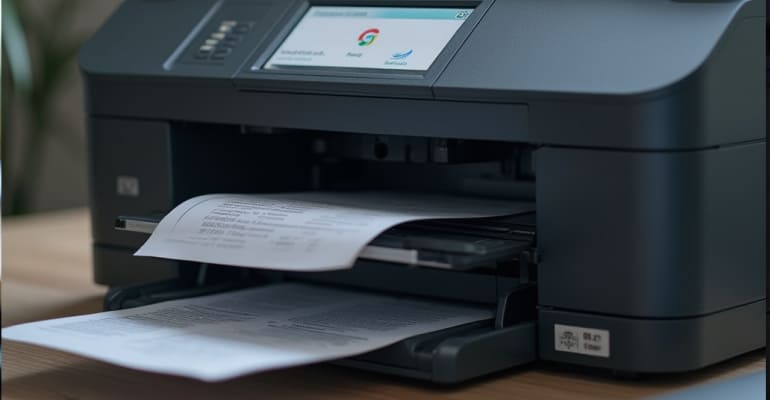
3. Paper Clogs
The printer stops printing and displays a “paper jam” message, or paper gets stuck inside the machine.
Types of Causes:
- Paper tray is misaligned or overfilled
- Torn, curled, or damp paper
- Foreign objects or debris in the feed path
- Worn-out rollers or internal components
- Mixing different paper sizes or types in one tray
Fix It Yourself:
- Turn off and unplug the printer.
- Open all access panels and carefully remove jammed paper.
- Check inside rollers and trays for torn paper pieces.
- Avoid pulling paper forcefully to prevent damage.
- Reload the tray with fresh, aligned paper of the same size.
- Plug the printer back in and run a test print.
For the Future:
- Always use clean, flat paper of the correct type.
- Do not overfill the paper tray.
- Store paper in a cool, dry place.
- Clean feed rollers regularly for smooth operation.
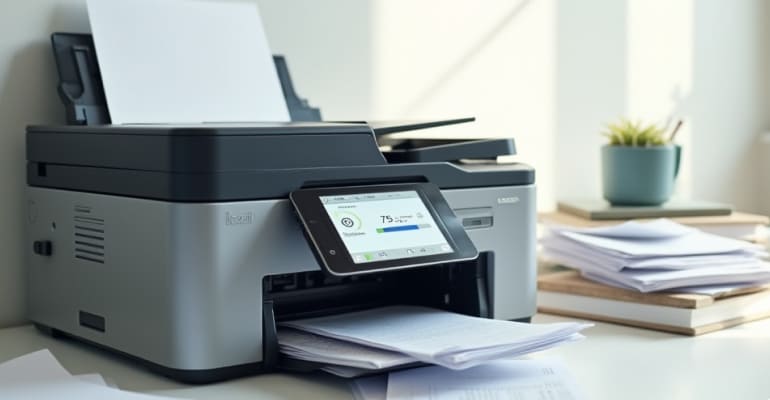
4. Slow Printing
Even simple documents take too long to process or finish printing.
Types of Causes:
- High-resolution settings or complex print files
- Network congestion or weak Wi-Fi signal
- Outdated printer drivers or firmware
- Too many queued print jobs
- Limited memory in older printer models
Fix It Yourself:
- Switch to standard or draft print mode for routine documents.
- Remove unnecessary jobs from the print queue.
- Restart the printer and connected devices.
- Move the printer closer to the router for better signal.
- Update printer software and drivers.
- Split large print jobs into smaller batches.
For the Future:
- Use lower print quality for everyday tasks.
- Connect via USB if Wi-Fi is unstable.
- Schedule large print jobs during off-peak hours.
- Keep printer and system software updated.
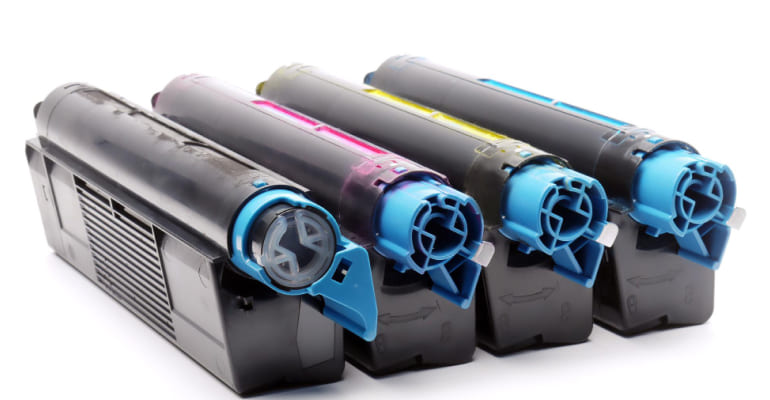
5. Ink or Cartridge Issues
The printer shows low ink warnings, fails to detect cartridges, or prints blank pages.
Types of Causes:
- Cartridges not seated correctly
- Ink levels are low or empty
- Air bubbles or dried ink blocking nozzles
- Use of incompatible cartridges
- Firmware not recognizing new cartridges
Fix It Yourself:
- Turn off the printer and reseat cartridges properly.
- Run a nozzle check or head cleaning from settings.
- Replace cartridges if ink is low or prints remain blank.
- Avoid touching cartridge nozzles or chip areas.
- Ensure compatible cartridges match your printer model.
- Restart the printer to apply changes.
For the Future:
- Store cartridges properly and use them before expiry.
- Run a monthly test print to keep ink flowing.
- Use original or verified compatible cartridges.
- Avoid unnecessary cartridge removal.
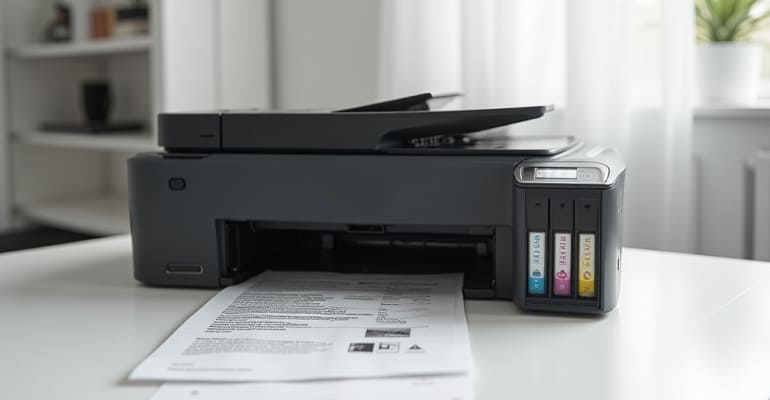
6. Print Alignment & Quality
Prints appear misaligned, blurry, faded, or show streaks and missing lines.
Types of Causes:
- Misaligned printheads
- Dirty or clogged nozzles
- Incorrect paper settings
- Uneven or low ink distribution
- Paper not loaded correctly or incompatible
Fix It Yourself:
- Run the printer’s alignment or calibration tool.
- Clean printheads and check nozzles.
- Select the correct paper type and print quality.
- Reload paper carefully to ensure proper feeding.
- Replace cartridges if ink distribution is uneven.
For the Future:
- Check alignment regularly, especially after replacing cartridges.
- Always choose the correct paper type in settings.
- Clean printheads periodically, even if unused.
- Avoid low-quality or damp paper.
